Play Rupees Game Troubleshooting and Common Issues
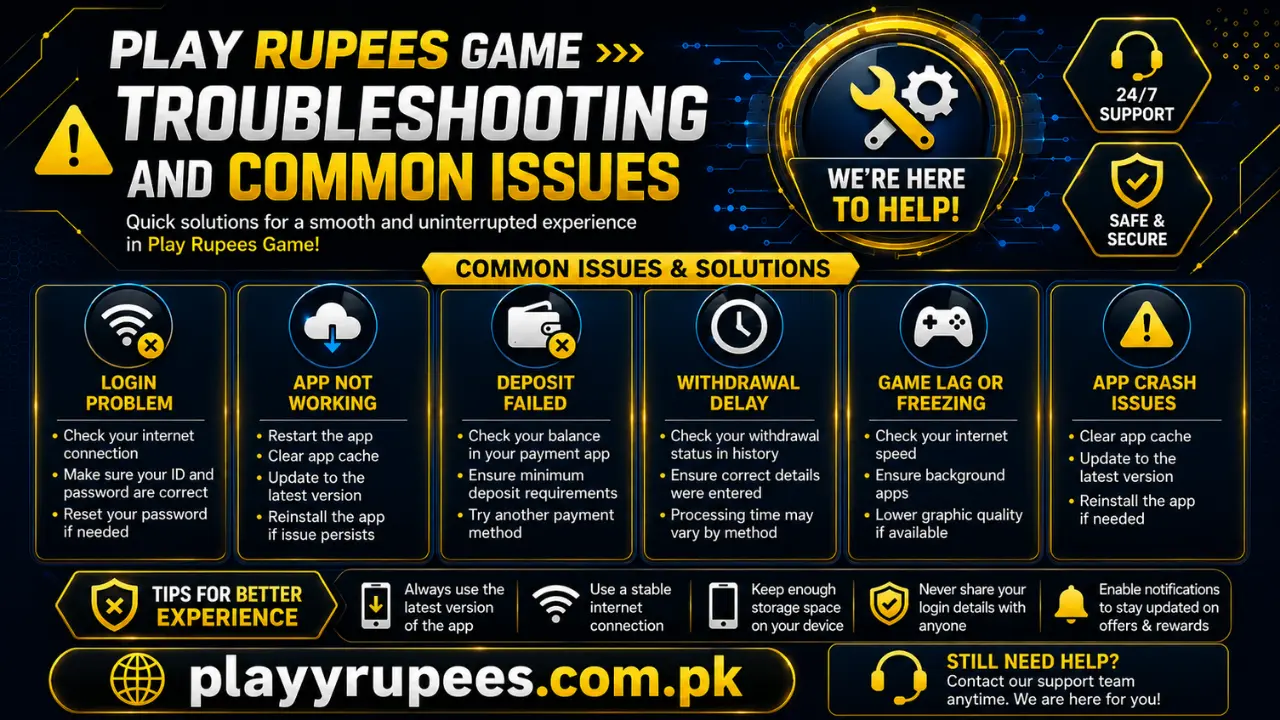
If Play Rupees is not loading, crashing, rejecting a login, delaying an OTP, or showing a transaction problem, start with four checks: test your internet connection, force stop and reopen the app, restart your phone, and install the latest verified version. Use the issue-specific steps below if the problem continues.
Quick Fix Table
| Problem | First action | Next action |
|---|---|---|
| App does not open | Check the internet connection | Force stop the app and restart the phone |
| Game session does not load | Switch to a stable connection | Update and reopen the app |
| App crashes during login | Clear the app cache | Update or reinstall the APK |
| Password is rejected | Type the password again carefully | Use the password-reset option |
| OTP does not arrive | Check the mobile network | Request a new OTP after the connection is stable |
| APK does not install | Confirm that the download finished | Download a fresh, verified APK |
| Payment is not shown | Confirm that the payment completed | Check the account and payment details |
| Transaction error continues | Clear the app cache or browser cookies | Try the process in a different browser |
| Withdrawal remains pending | Check its current status | Wait for the stated processing period |
| Wrong wallet number was entered | Do not submit another request | Contact support with the transaction details |
Start With These Basic Checks
Complete these steps in order. Test the app after every step so you do not make unnecessary changes.
- Check your connection. Open another app or website to confirm that mobile data or Wi-Fi is working.
- Force stop Play Rupees. Open Android Settings, select Apps, find Play Rupees, and use the Force stop option. Reopen it.
- Restart the phone. This closes stuck processes and starts a fresh app session.
- Clear the app cache. Open the app’s storage settings and select Clear cache. Do not select Clear data unless you know your login details.
- Check for an update. An old build can fail during login, loading, or account actions.
- Reinstall the app. Use this only when clearing the cache and updating do not solve the problem.
Play Rupees APK Is Not Downloading
An interrupted connection can leave an incomplete APK file on the phone. An incomplete file will not install correctly.
Try these steps:
- Check that your internet connection is stable.
- Open the Downloads folder and confirm that the file finished downloading.
- Delete the incomplete file if the download stopped.
- Download a fresh copy from a verified page.
- Open the new file only after the download is complete.
If the download repeatedly stops, switch between Wi-Fi and mobile data and start again.
APK Downloaded but Will Not Install
First confirm that the APK finished downloading. Do not keep opening the same incomplete file.
Follow this order:
- Remove the failed or incomplete APK.
- Download the file again.
- Open the new file from the Downloads folder.
- Follow the Android installation prompts.
- Restart the phone if the installation screen closes or stops responding.
App Does Not Open
A connection problem or stuck app session can prevent Play Rupees from opening. Use Android’s Force stop option and reopen the app. If it still does not start, restart the phone and check for an updated version. Clear the cache before reinstalling because this keeps the first repair simple.
Reinstall the APK only after the earlier steps fail. Make sure you remember your registered login details before removing the current app.
Game or Activity Stays on the Loading Screen
A game session needs a working internet connection. If the session request cannot finish, the screen can remain stuck.
Try the following:
- Test the connection in a browser.
- Turn the current connection off and back on.
- Force stop Play Rupees.
- Reopen the app and load the activity again.
- Restart the phone if the same screen remains.
- Update the app if a newer verified version is available.
App Keeps Crashing
Clear the cache when Play Rupees closes by itself, freezes, or crashes during login.
How to clear the cache on Android
- Open Settings.
- Select Apps.
- Find and open Play Rupees.
- Select Storage.
- Tap Clear cache.
- Reopen the app.
Menu names differ between Android phones, but the Play Rupees storage controls are inside the app information screen.
If the crash continues, update the app. Reinstall a verified APK only when the latest version also crashes.
Login Password Is Not Accepted
Check the password carefully before starting a reset. A typing mistake can produce an incorrect-password message.
Delete the entered password and type it again. If you no longer remember it, use the password-reset option shown on the login screen and complete the required verification. Avoid making repeated guesses. Resetting the forgotten password is clearer than continuing with different combinations.
OTP Is Not Received
OTP messages can be delayed by a mobile network problem. First confirm that the registered phone has a working signal.
Then:
- Check that the phone number entered during registration is correct.
- Wait for the current request to finish.
- Check the mobile network connection.
- Request a fresh OTP after the signal becomes stable.
- Enter the newest code received.
Never share an OTP or password with another person. Support staff should not need these details to identify a technical problem.
App Crashes During Login
A login crash is different from an incorrect-password message. If the app closes after you press the login button, repair the app itself.
Use this order:
- Force stop and reopen the app.
- Clear the Play Rupees cache.
- Restart the phone.
- Update to the latest verified version.
- Reinstall the APK if the crash remains.
If the login page works in a browser, you can also try that while resolving the app problem.
Registration Does Not Complete
A registration problem can come from incorrect account information, an OTP delay, or an interrupted connection.
Review every entered field before submitting the form again. Check the phone number carefully because it is used for account verification. If the form stops at the OTP stage, fix the network connection and request a new code.
If the registration page freezes, force stop and reopen the app. Clear the cache if the same screen keeps returning.
Payment Completed but Not Shown
First check whether the payment itself completed. A submitted request and a completed payment are not the same status.
Review the following:
- The account details entered during the transaction
- The selected payment method
- The payment status
- The amount shown in the completed transaction
- The account in which the balance should appear
If the payment is still processing, wait for its status to change before repeating it. If it is marked complete but does not appear in the account, contact support and provide the relevant transaction information. Never send funds to an unknown personal account.
Transaction Page Shows an Error
Start by checking the internet connection. Force stop and reopen the app, then confirm that the selected payment method remains valid.
If you are completing the process through a browser:
- Clear the browser cache and cookies.
- Reopen the payment page.
- Try a different browser if the error remains.
- Confirm the payment status before starting another transaction.
Restarting the phone can also clear a stuck payment session. Do not repeat the transaction until you know whether the first one completed.
Withdrawal Is Still Pending
Open the account’s transaction section and check the withdrawal status. If it is marked pending, wait for the processing period stated inside the app or account.
Processing times can differ by app version, account, payment method, and request status. Do not assume that a pending request has failed before the displayed period ends.
Contact support when the stated period has passed and the status has not changed. Provide the correct account and transaction details, but never provide your password or OTP.
Wrong Wallet Number Was Entered
Check the wallet number before submitting every withdrawal request. A wrong number can prevent the request from reaching the intended account.
If the request has already been submitted, do not create another withdrawal to correct it. Check the status and contact support with the transaction details. Do not guess that a submitted wallet number can still be edited.
Balance, Bonus, or Reward Is Missing
First refresh the account by closing and reopening the app. Check the internet connection and confirm that you are signed in to the correct account.
Review the displayed conditions for the bonus or reward. Account rules and offers can differ by app version or account. If the required conditions were completed but the item is still missing, contact support with the offer name and account details.
When Reinstalling Is the Right Step
Reinstall Play Rupees after these actions fail:
- Force stopping and reopening the app
- Restarting the phone
- Clearing the cache
- Checking the connection
- Installing an available update
Before uninstalling, make sure you know the phone number and password connected to the account. Download the replacement APK from a verified page and avoid modified versions.
What to Send When Asking for Help
Clear information helps support identify the problem without repeated questions. Include:
- The exact error message
- The action that caused the error
- The app version
- The Android version
- The date and time of the problem
- The transaction status, if payment is involved
- A screenshot that does not expose private details
FAQs
Why is Play Rupees not opening?
Check the connection, force stop the app, and restart the phone. Clear the cache and install the latest verified version if it still does not open.
Why does the app crash when I log in?
The app session or cached files can be causing the crash. Clear the cache, update the app, or reinstall the verified APK.
What should I do if my password is incorrect?
Type it again carefully. Use the password-reset option if you have forgotten it.
Why has my OTP not arrived?
A weak mobile network can delay the message. Check the registered number and network signal, then request a fresh OTP.
Why will the APK not install?
The file can be incomplete. Confirm that the download finished, remove the failed file, and download a fresh verified copy.
What should I do if a payment is not visible?
Confirm that the payment completed and check the account and payment details. Contact support if the transaction is complete but does not appear.
Why is my withdrawal pending?
Check the request status and wait for the processing period displayed in the app. Contact support after that period has passed.
Should I clear the cache or reinstall the app first?
Clear the cache first. Reinstall only when force stopping, restarting, clearing the cache, and updating do not fix the problem.
Is a modified APK safe to use as a fix?
No. Use a verified APK. A modified or unverified file can create installation and account-security problems.